Tripodr
Convenient image loading for mobile radiology at UCLA.

Convenient image loading for mobile radiology at UCLA.
Tripodr is an iOS Shortcut designed to help you conveniently load radiology images from the UCLA Health PACS on your mobile device. It can take any text or image input on your phone, extract the first medical record or accession number it finds, and then opens the corresponding patient jacket in the Visage Ease mobile viewer. Tripodr will also detect whether you are on the UCLAHealthSecure wireless network or GlobalProtect VPN, and launch the VPN for you if needed.
To install Tripodr, follow these steps on your iOS device:
 If not, follow these instructions from UCLA Health IT
 and the GlobalProtect VPN:
  are installed. If not, you can get them from the U App Catalog.
Tripodr analyzes text and images on your phone to find medical record or accession numbers, and passes them to the Visage viewer. There are two main ways to do this:
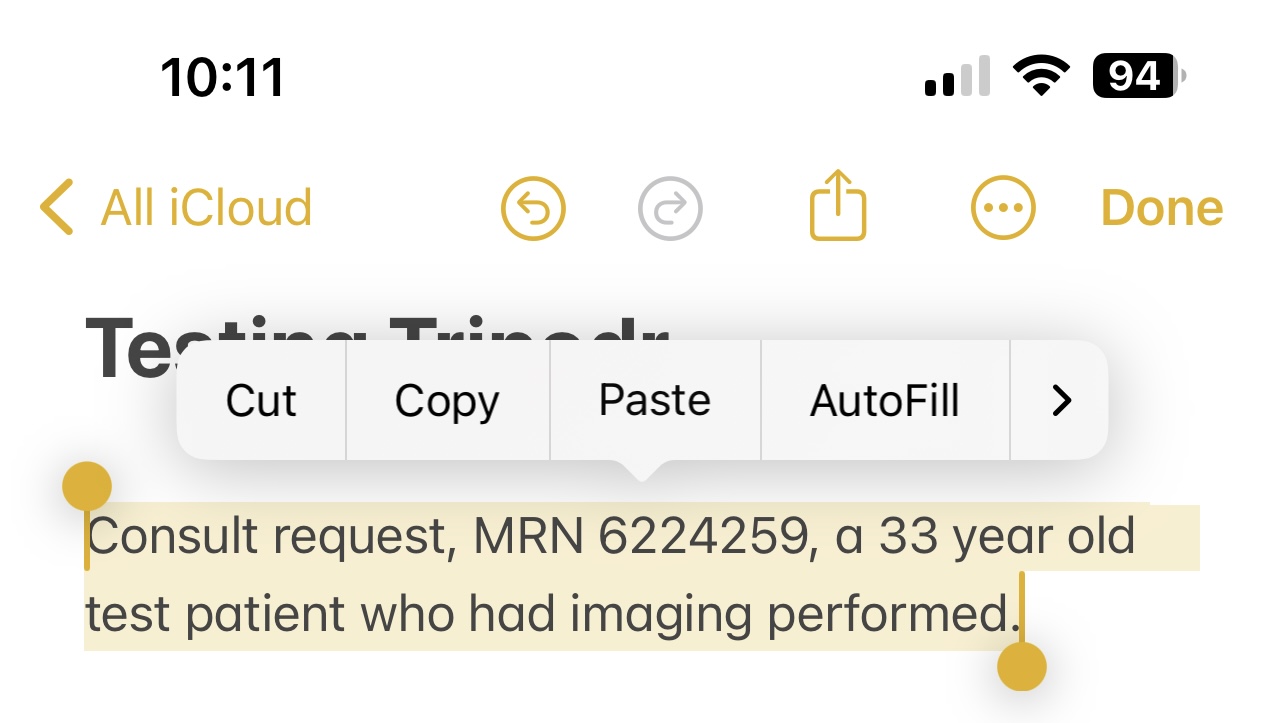
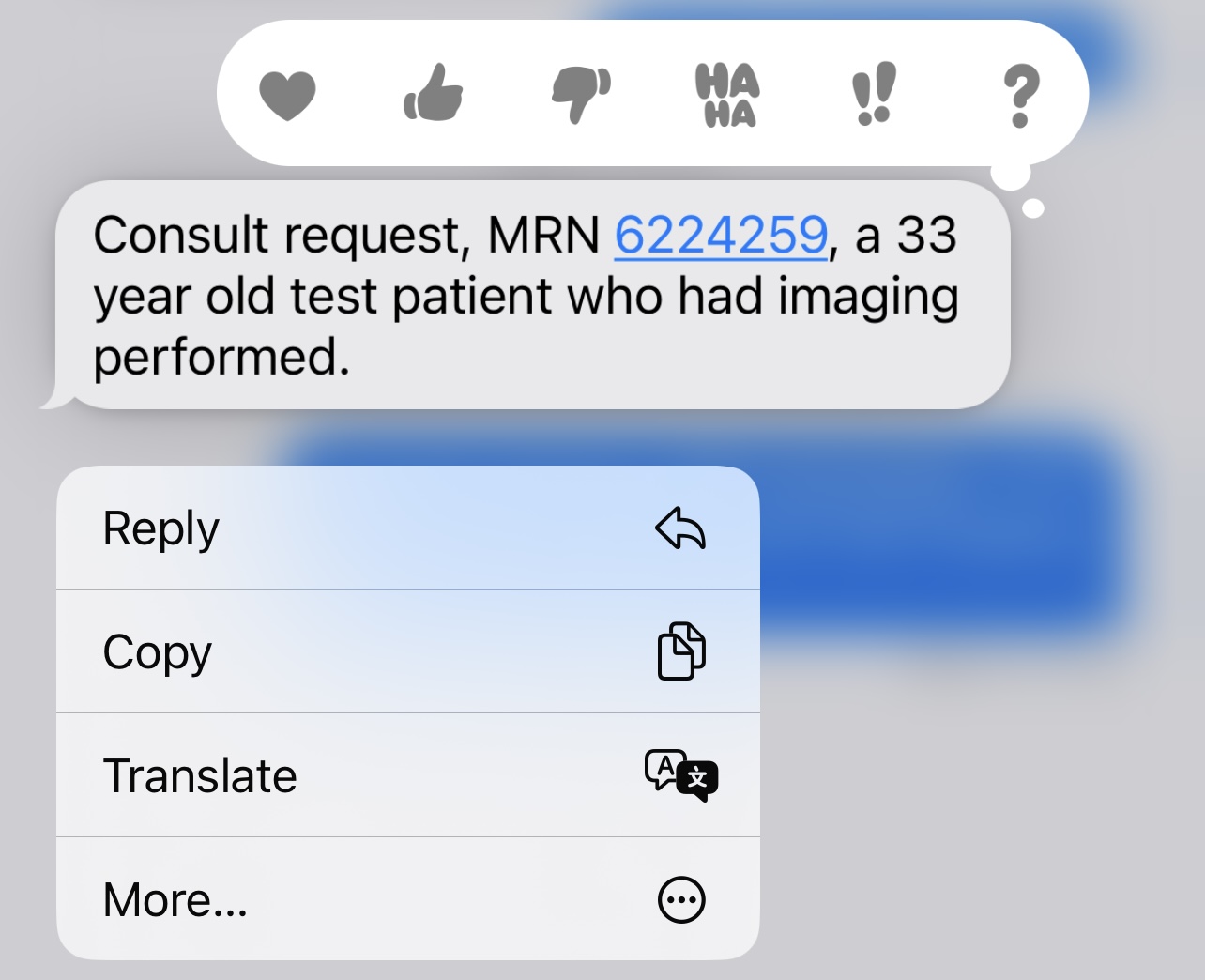
 in your app, then scroll to select the option to share to Tripodr.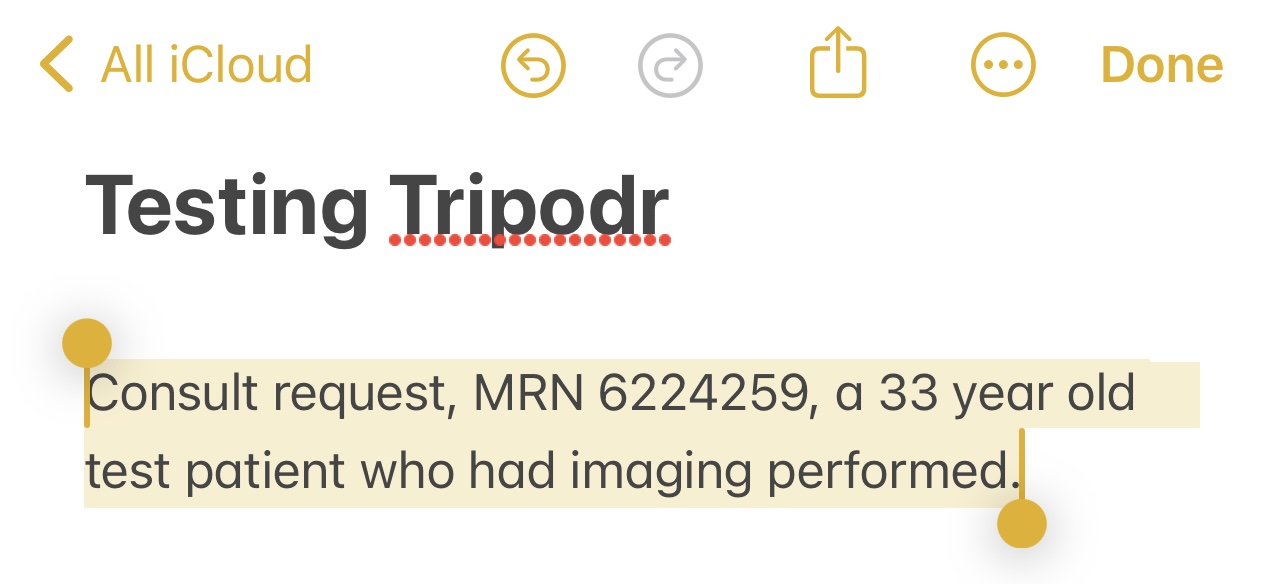
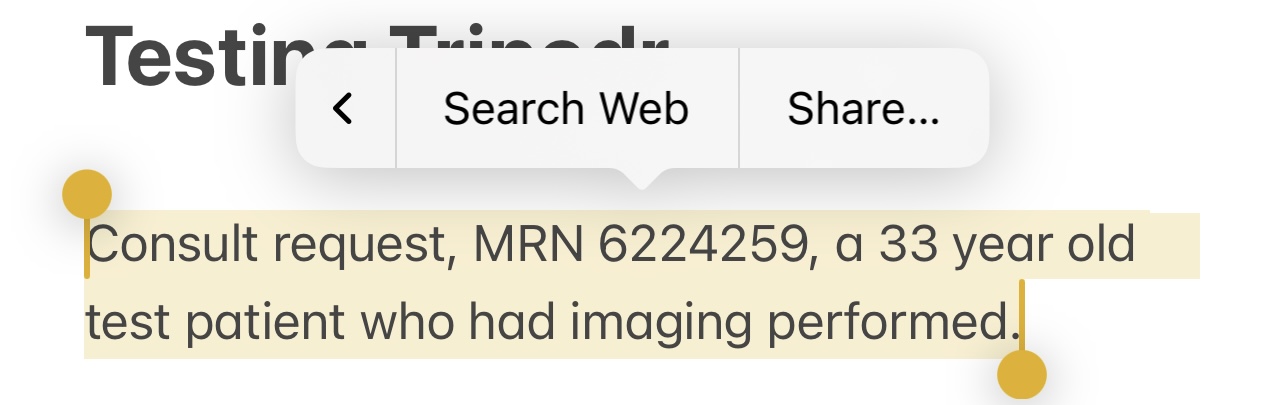
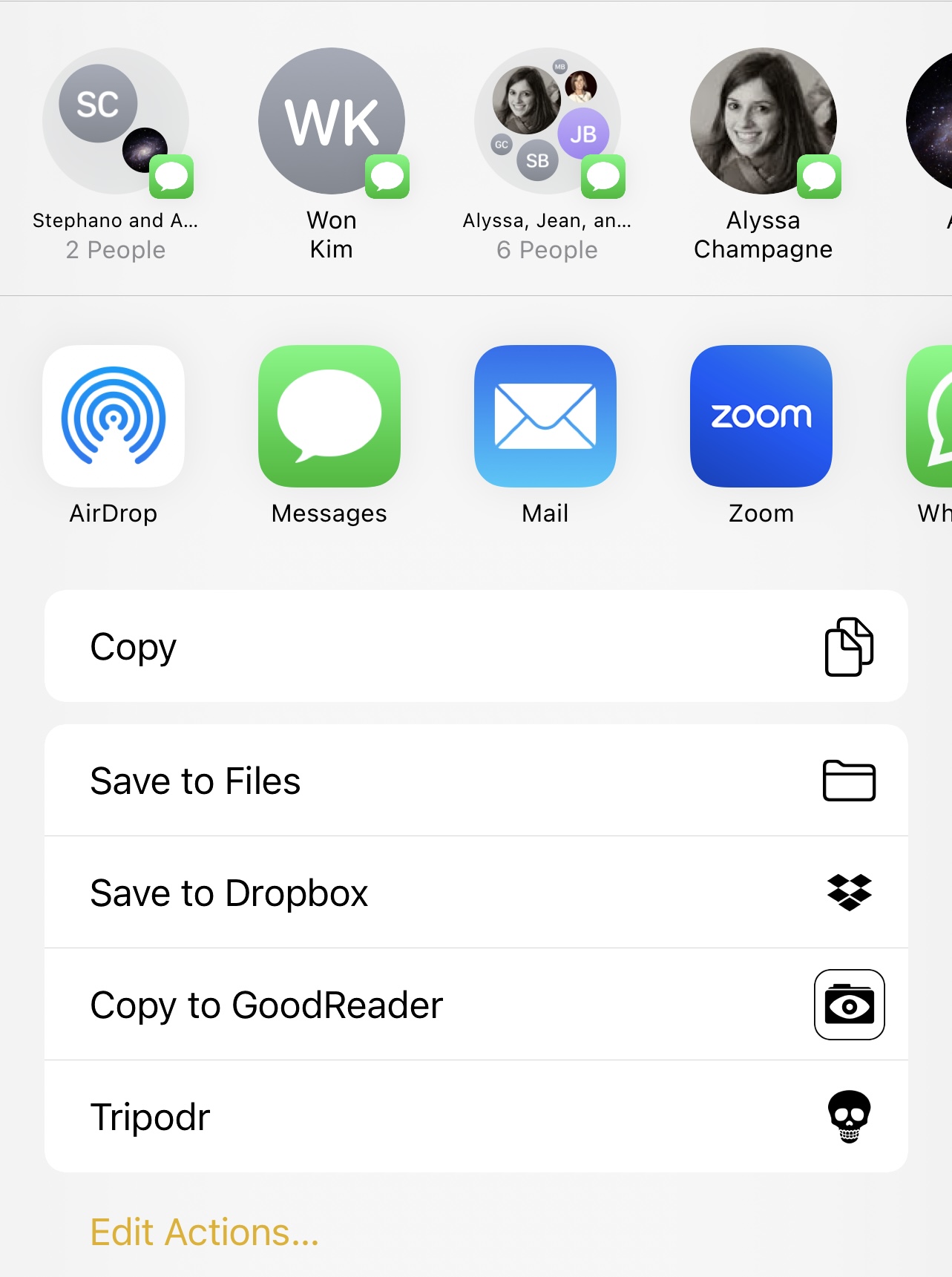
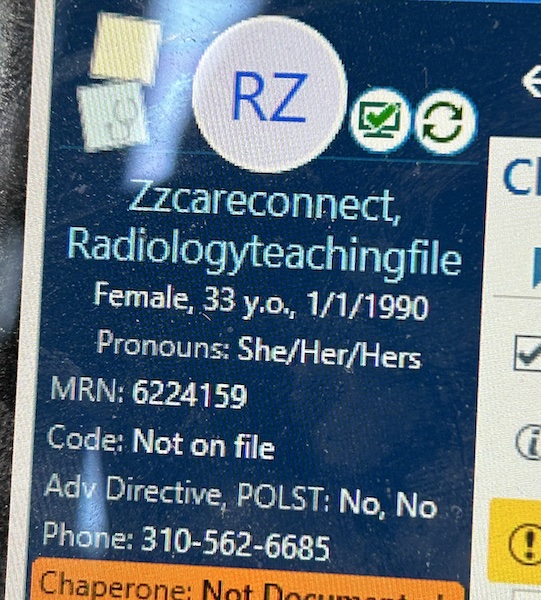
Tripodr will work from shared notes, emails, PDFs, and WhatsApp messages. It will also work from photos of PACS viewers, facesheets, Spok pages, patient labels, and wristbands. Not all apps provide an interface for directly sharing to Tripodr, but you can always take a screenshot.
We also recommend configuring the iOS password manager with Face ID or Touch ID to allow you to quickly enter your password for the VPN and Visage.
A: Tripodr and Visage Ease are only available for iOS devices.
A: Visage is pretty intuitive but instructions are available here.
A: Tripodr does not transmit or receive any network data itself, it's simply a convenient launcher for the Visage viewer.
A: No.
A: Tripodr should work for anyone in the UCLA Health system with credentials for accessing clinical images on Visage.
A: LOL, no.
A: You are likely working from off-campus (or not on UCLAHealthSecure WiFi) without the VPN activated. Activate the VPN and try again. When the VPN is correctly activated, it looks like this: 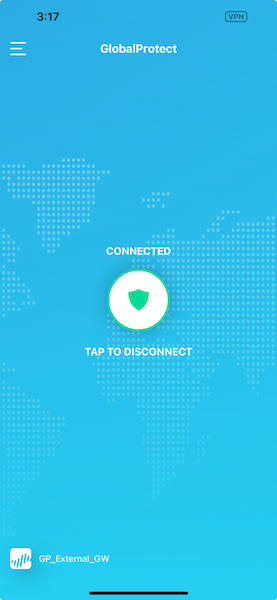
A: UCLA Neurosurgery staff should contact the Tripod for technical support. For other users, YOYO.
A: Tripodr takes the text, images, or documents you route to it or place on the clipboard, and scans them for 7 or 8 digit numbers. It selects the first 7 or 8 digit number it finds, and interprets 7 digit numbers as MRNs and 8 digit numbers as accession numbers.
A: Tripodr detects the SSID of your wireless network and current IP address. If the network name is UCLAHealthSecure or your IP address matches the GlobalProtect VPN IP pool then it assumes you will have access to the Visage server. Otherwise it prompts you to launch the VPN.
A: Tripodr is developed by and named after a class of UCLA Neurosurgery residents called the Tripod.